3D Hoodie Mockups: Pullover and Full Zip
ThreadCam lets you put a logo or graphic on a 3D hoodie and see it from every angle before you order blanks. There are two hoodie models, a pullover and a full zip, and both are part of ThreadCam Pro.
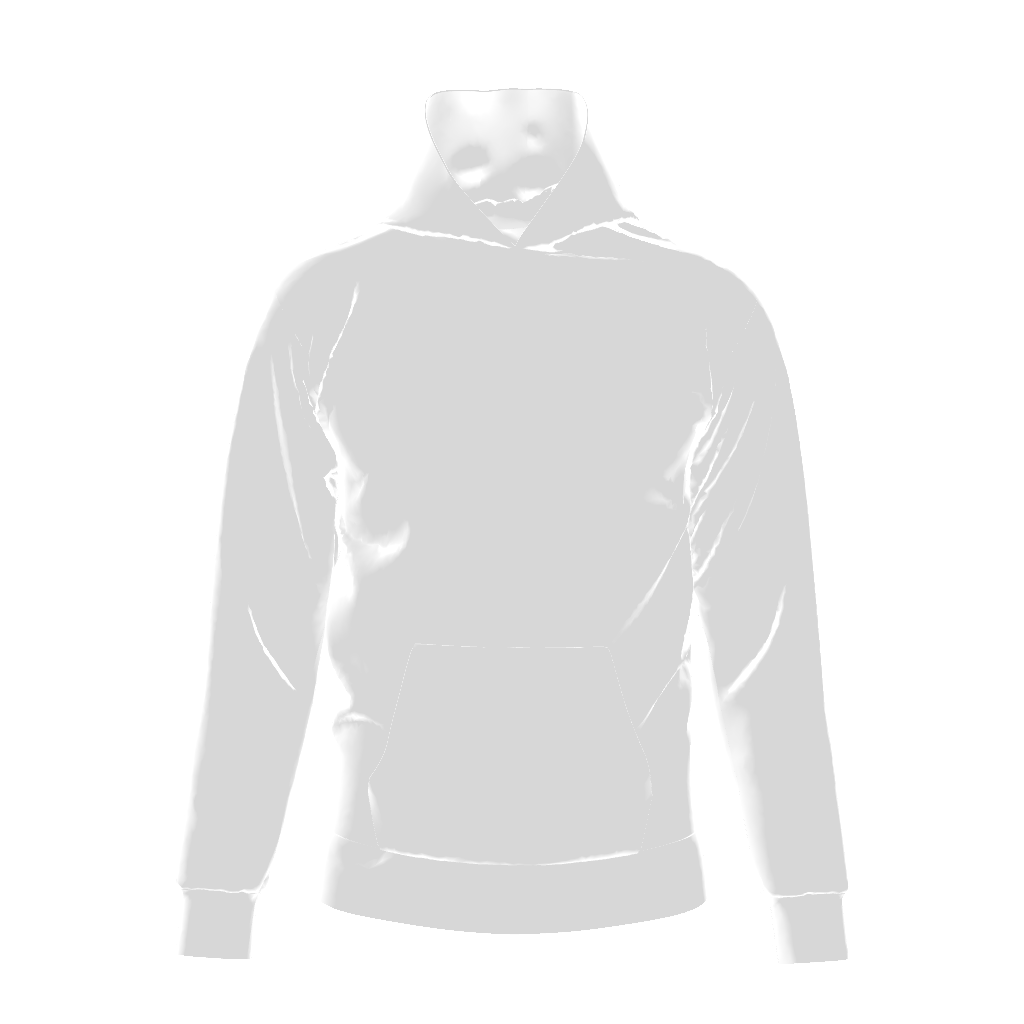
Pullover or full zip?
Choose the model that matches the blank you will sell. The pullover gives you an uninterrupted chest for a large centre print. On the full zip, the zipper runs down the middle, so a centred graphic would be split in two; a left-chest logo is usually the better choice there.
How to make a hoodie mockup
- Open the Hoodies category and pick Hoodie or Full Zip Hoodie.
- Set the fabric colour from the swatches, for example near-black or navy for a classic drop.
- Add your artwork from Photos, the share sheet, or AI Design Studio.
- Position, scale and rotate it on the placement canvas; the 3D hoodie updates as you drag.
- Export a photo, or record a camera-animated video for a product page or a social post.
Getting the size right
Hoodies are bulkier than tees, so a graphic that fills a t-shirt chest can look small on a hoodie. Scale it up in small steps and orbit the camera: the folds of the body and the hood show you whether the design reads from the side as well as the front.
For video, a slow move such as Simple Orbit or Cinematic Orbit shows the whole garment, while a closer move such as Detail Breather draws attention to the print.
Questions
Are hoodies free in ThreadCam?
No. Both hoodie models are part of ThreadCam Pro. The Regular and Walking T-Shirts are the free garments.
Can I print on the hood or sleeves?
Not in the current App Store version. Artwork goes on the front placement area of the garment.
Related
Compare this with the other garments on 3D clothing mockups by garment, browse all ThreadCam mockup features, or get help with the app on the ThreadCam support page.
Features described here are from the iOS app. ThreadCam is also on Google Play; the Android version may not have every feature yet.